In this article, you'll learn how to configure several settings to tailor how posts are created in your Higher Logic Vanilla (Vanilla) community.
Access your Posting Settings
- Access the Dashboard.
- Navigate to Settings > Posts > Posting.

The Posting Settings page is organized into several sections. Let's examine each one.
Enable bulk-actions
At the top of the page, the Enable checkboxes on posts and comments option controls whether Admins can perform bulk actions.

When enabled, Admins will see checkboxes on applicable post and comment pages, allowing them to make multiple selections and perform a variety of bulk actions (actions are dependent on post type).

Formats
NOTE: The editor will auto-detect the format of old posts when they're edited and load their original formatting rules. Apart from this exception, your selected Post Format will take precedence.
For the Rich and WYSIWYG formats, however, you can toggle the Reinterpret All Posts As... option to force all old posts in different formats to adhere to your selected one.
- Mobile Format: Here, you're choosing from one of the formats discussed above, but for mobile devices. For a consistent experience, we generally recommend selecting the same format as above, unless you have a specific reason not to.

Mentions
- Everyone can global mention: Turn this on if you want all of your users to be able to mention any other user, even if they don't have access to the Group or Category where the post is located.
- Strictly filter @ mentions by Groups and Categories…: Enable this option to show only users who belong to the selected Category or Group when posting. If someone tries to mention a user who isn't part of the Group or Category, those users simply won't appear in the mention list except to users with the
Garden > Moderation > Manage permission. This feature only works with the Rich Editor.
TIP: Refer to the sections below to gain insight into which of these options is right for your community.
- Disable @ mentions: Select this option to disable the ability to mention altogether.

Reasons to use global mentions
Simple, social-style behavior
- Users don’t have to understand Category/Group boundaries; they can just type @name and it works like other social platforms, which can reduce friction for casual users.
Good fit for mostly open communities
- If the majority of your Categories/Groups are visible to everyone, the risk of mentioning someone who can’t see a post is low; in this scenario, global mentioning becomes a convenience more than a risk.
Small, high-trust communities
- In smaller or internal communities where access is broad and sensitive segmentation is minimal, global mentions can help people quickly pull in colleagues or experts without worrying about scopes.
Reasons to filter mentions to Categories/Groups
Gated or sensitive areas
- For communities with restricted Categories/Groups (e.g., partners, staff-only, etc.), it doesn't make sense to be able to @ mention someone who wouldn't be able to see the post.
- Global mentions can leak awareness that a sensitive space or discussion exists, even if the mentioned person cannot open it.
Irrelevant or noisy suggestions
- In large communities, mention autocompletes can surface numerous users who have nothing to do with the current Category/Group, making it harder to find the right person.
Notification overload and misuse
- Users being able to mention anyone, anywhere can lead to over-tagging staff or power users, creating notification fatigue, especially when they’re mentioned in spaces they don’t manage.
Stronger governance expectations
- If a community is deliberately segmented (e.g., by customer account, region, or program), filtered modes better align with the expectation that only people who can see a space should be involved in its conversations.
Embeds
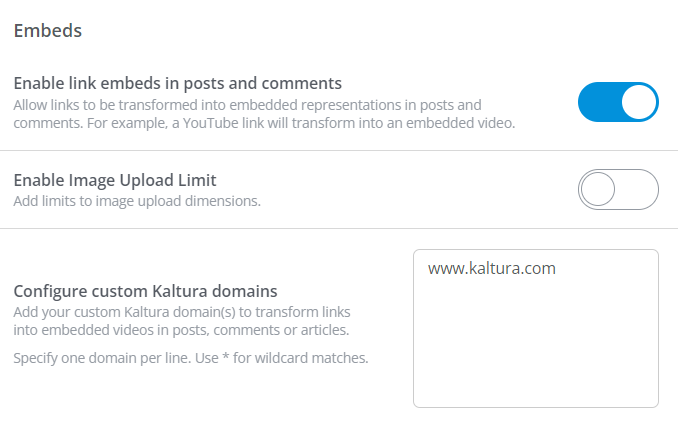
- Enable link embeds in posts and comments: Determines whether links can be transformed into embedded representations in posts and comments. For example, a YouTube link will automatically transform into an embedded video.
- Enable Image Upload Limit: Determines whether uploaded images must adhere to a maximum dimension limit. Enable this option to display the Max Image Width and Max Image Height options, where you can define these limits. Images exceeding these set limits will automatically be scaled down.
- Configure custom Kaltura domains: Add your custom Kaltura domain(s) to transform links into embedded videos in posts, comments, and articles. Add only one domain per line. Use * for wildcard matches.
Appearance
- Maximum Category Display Depth: Nested categories deeper than the selected depth will be placed in a comma-delimited list. You can select 1, 2, 3, 4, 5, or No Limit.
- Posts per Page: Defines the maximum number of posts that will display per page.
- Comments per Page: Defines the maximum number of comments that will display per page.

Rules
- Post & Comment Editing: Use this option to control whether authors can edit their own posts. Options include always being able to edit, never being able to edit, and a variety of time-based options, such as allowing editing only for an hour, a day, a week, etc.
NOTE: If a user belongs to a Role with edit permissions, those permissions will override this setting.
- Max Post Length: Controls the maximum number of characters each post can be. While we generally recommend keeping this to a reasonable limit, some communities may need to support longer posts, so choose a limit that meets your specific community's needs.
- Min Post Length: Controls the minimum number of characters each post must be. This is a great way to prevent users from contributing posts that are too short (sometimes, these posts may not provide the value you're looking for).
- Max Post Title Length: Controls the maximum character length possible for post titles. The minimum length is 50; the maximum is 250.

Tagging
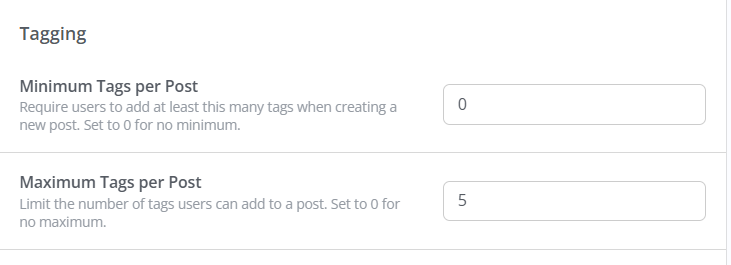
You can optionally configure both a community-wide minimum and maximum number of tags required/allowed per post. These limits are enforced when creating and editing Discussions, Questions, Ideas, and custom post types.
- Set the Minimum Tags per Post option to the number you want to require (enter 0 for no minimum).
TIP: Start simple: set a minimum of 1–2 to ensure baseline classification without adding posting friction.
- Set the Maximum Tags per Post option to your preferred cap (enter 0 for unlimited). This must be equal to or greater than your minimum.
TIP: Keep the maximum tight (typically 3–5) to promote thoughtful tagging and reduce noise.
IMPORTANT: If you're using Scoped Tagging, each Category/Subcommunity must have enough available tags to meet your set minimum or you’ll be blocked from saving. In this case, you'll need to create/scope additional tags to ensure the minimum is met.
Why would you consider setting a minimum and/or maximum? Tags are like behind-the-scenes organizers that make it easier to categorize your community content, which, in turn, makes it easier for your users to find.
With this in mind, here a re a few reasons why you should set a minimum and maximum for your community.
Why set a minimum?
- Ensures every post is at least lightly classified, improving content discovery via tag pages, tag-based filtering, and Advanced Search. This makes it easier for members to find related content with a single click and improves browsing relevance.
- Guarantees participation in tag-driven personalization and recommendations (e.g., widgets that surface tagged content), so more users actually see relevant posts.
- Increases the completeness and accuracy of tag analytics, so Dashboards and reports reflect real usage and trends (instead of undercounting because many posts lack tags).
- Reinforces your taxonomy governance, especially with Scoped Tagging: posters must choose from approved, context-relevant tags in each Category/Subcommunity, keeping topic organization consistent.
Why set a maximum?
- Prevents tag "spamming” and "noise." With a sensible cap, authors choose the most relevant tags instead of adding everything remotely related, which keeps tag pages useful and focused.
- Keeps your taxonomy clean and usable. Fewer, more precise tags reduce duplication and drift (e.g., near-synonyms and one-off tags), lowering moderator cleanup.
- Improves user experience. Tag clouds and tag-based widgets stay meaningful, and filters return higher-quality results.
- Preserves analytics quality. Caps prevent a few highly active users from diluting insights by over-tagging, keeping tag metrics comparable across posts.