The User Following feature allows you to follow other users so you can choose whether to receive in-app and/or email notifications about their posts, comments, and events in the community. It complements Category- and Tag-based following by letting you personalize part of your community experience around people, not just topics.
Enable or disable User Following
Administrators with the appropriate settings permission can control whether User Following is available without developer or Support assistance.
To enable or disable User Following:
- Access the Dashboard.
- Navigate to Settings > User Preferences.
- Locate Enable User Following and toggle it On or Off.
When the setting is Off, follow and unfollow controls and related notification preferences are hidden, and User Following notifications are not sent. Existing follow relationships are preserved but inactive. Turning the setting back On restores those relationships and the expected User Following behavior.
Default setting: User Following is Off for new sites and existing sites that did not previously have it enabled. Existing sites that already had User Following enabled retain the On setting.
TIP: Over time, there may be posts from users you follow that generate a high volume of engagement and notifications you’re not interested in. Rather than turning off user‑based notifications entirely, you can granularly mute individual posts, just as you can for Category‑ and Tag-based notifications. This preserves other useful notifications while silencing noisy discussions you're not interested in. Check out this article to learn more.
Why follow users?
Following users is useful when there are specific people in your community whose activity you do not want to miss. For example, you may want to follow:
- subject-matter experts who regularly post helpful answers;
- product specialists or moderators who share important updates;
- active peers whose discussions and comments you consistently find useful; or
- thought leaders and trusted contributors you want to keep up with over time.
Follow a User
You can follow (and unfollow) users:
- from their profile page or
- their User Card.
NOTE: The easiest way to follow a user is from their User Card, which is what this article focuses on.
To follow a user:
- Click their name anywhere it appears in the community. Their User Card displays.
- Click the Follow button.
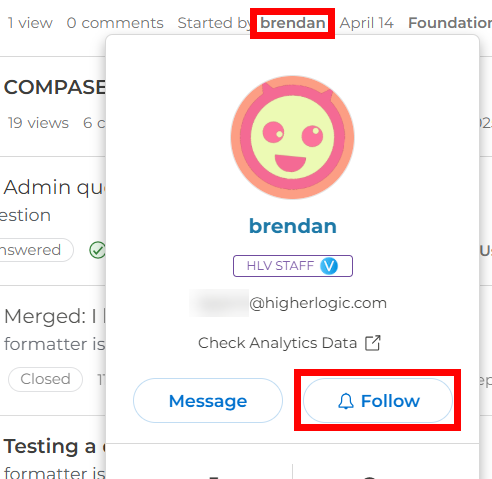
This action:
- Starts tracking the user as followed, and
- Adds the user to your Followed Content page, on the Users tab.
NOTE: User Cards only allow the following and unfollowing of users. Learn how to manage user notifications and set default preferences in the sections below.
Followed Content page
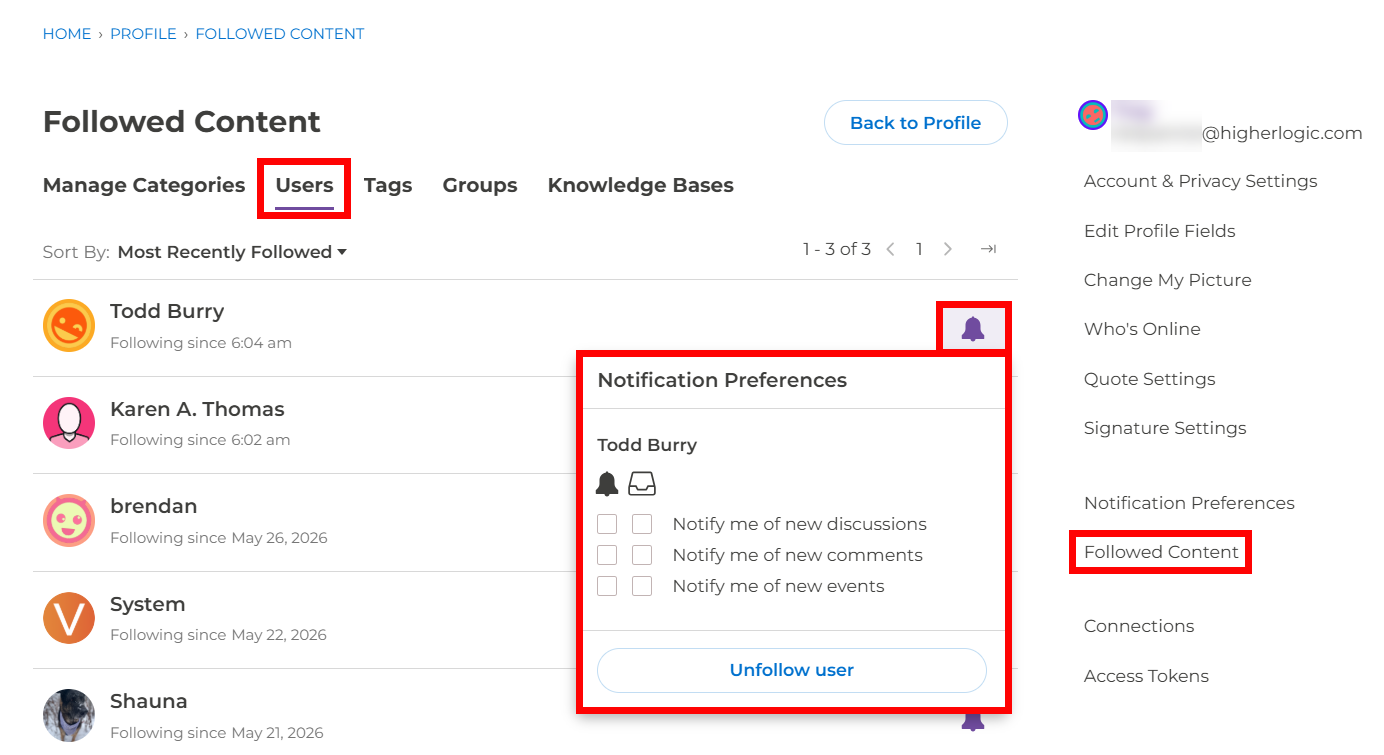
Any users you follow are added to your profile’s Followed Content page, on the Users tab.
On this tab, you can:
- See which users you’re currently following
- Update notification options for each followed user
- Unfollow users you’re no longer interested in
TIP: If you follow a lot of users, you can find them more easily using the available Sort By options: Most Recently Followed, Oldest Followed, or Alphabetical.
Notification preferences
To manage whether or not to receive notifications from users you've followed, and which types of notifications, click the user's bell icon (reference the image above).
- Check the boxes to control whether to receive notifications about the user's discussions, comments, and/or events. Each notification type is explained below.
- Unfollow user: If you’re already following a user, you can click Unfollow user at any time to disable all notifications and remove them from your list.
TIP: You can continue following a user even if you don't want notifications from them. To do so, simply turn off all of that user's notification options.
This is a great way to keep an accessible list of users you'd like to track over time.
Notification types
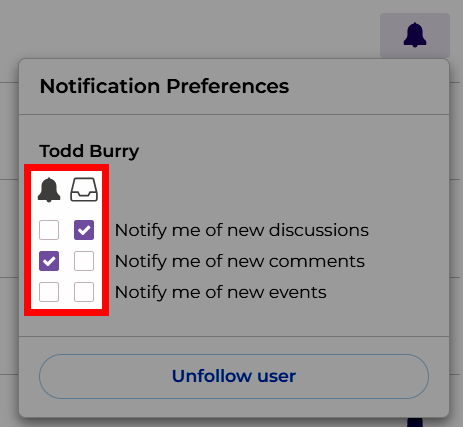
When setting your user notification preferences, you can control how each notification is delivered using the bell (in-app) and/or envelope (email) options.
If the same activity qualifies for more than one notification reason, you receive only one notification.
- Check the bell icon boxes to receive near real-time popups directly in the community (at the bottom left of your screen) AND messages in your Notifications Panel.
- Check the email icon boxes to have emails sent to your personal inbox. Keep in mind this option sends a separate email for each new discussion/comment/event the user posts, which can result in numerous emails, so it's generally only recommended for users who are very important to you.
TIP: In your personal inbox, these emails may end up in your Spam folder, so be sure to check there if you don't see them.
Set your default notification preferences
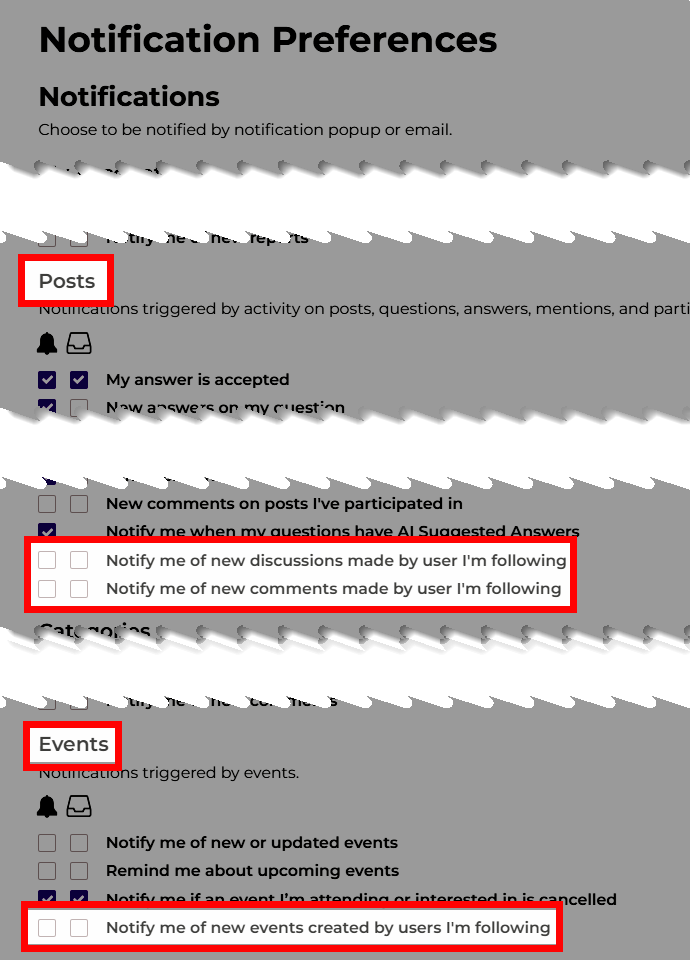
From your profile, you can set default user notification preferences that will automatically be applied whenever you follow a new user. While you're still free to update these defaults later, from your Followed Content page, they save time if you typically choose the same options for every user you follow.
To set your default user notification preferences:
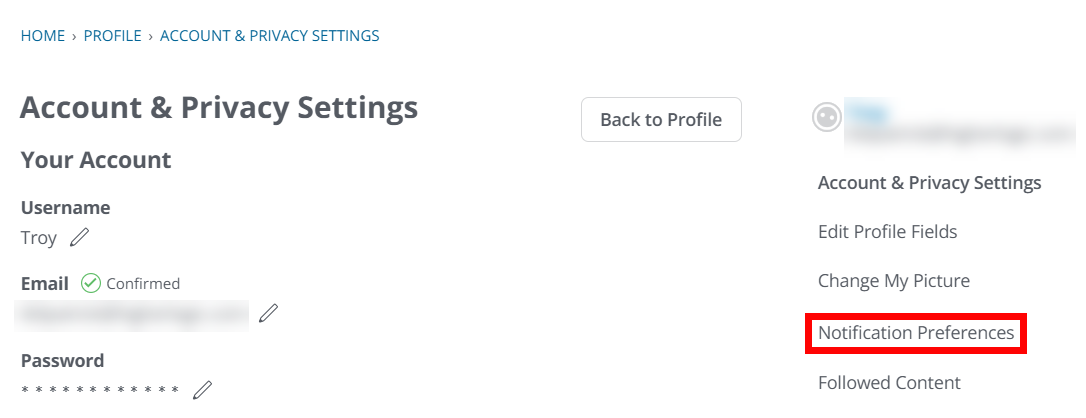
- Click the Notification Preferences link on the right side of the page (see above).
- User defaults are located in two areas: Scroll down to the Posts and Events sections (see below).
- For each option, choose whether you want:
- In‑app notifications (bell),
- Email notifications (envelope),
- or both.
Set default User Following preferences for your community
After User Following is enabled, admins can separately define default notification preferences for user-based notifications. These defaults are automatically inherited by new users in your community.
NOTE: "New user" equates to users who have created an account and have logged in at least once. All users can update these default preferences at any time from their profile > Notification Preferences page.
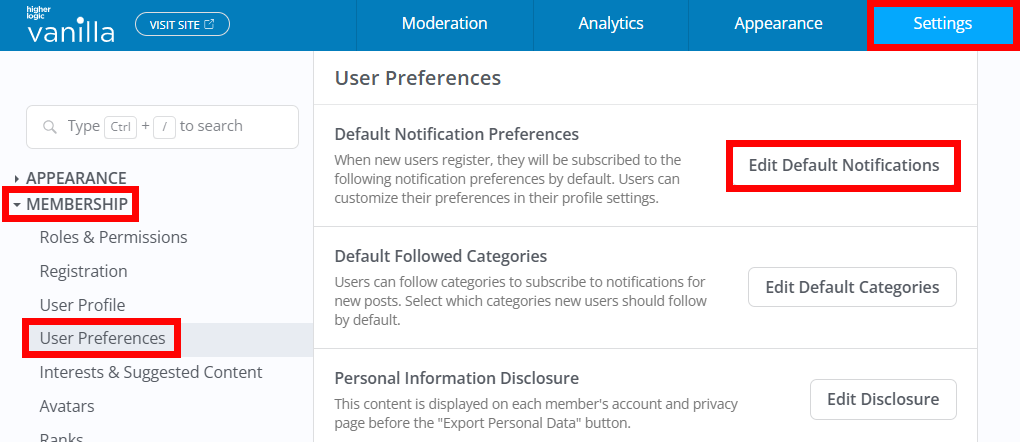
1. Access the Dashboard.
2. Navigate to Settings > Membership > User Preferences.
3. Click Edit Default Notifications.
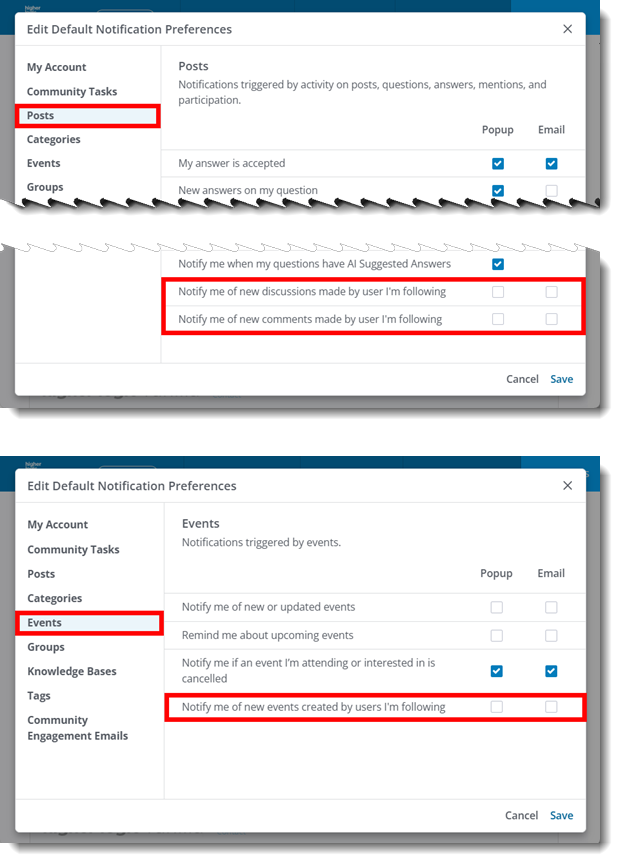
4. In the dialog, click the Posts tab.
- Set the Notify me of new discussions made by users I'm following preferences
- Set the Notify me of new comments made by users I'm following preferences
5. Click the Events tab.
- Set the Notify me of new events made by users I'm following preferences
6. Click Save.
Unsubscribe from User email notifications
User-based email notifications include an Unsubscribe link at the bottom of the message.
When you click this link:
- You are immediately unsubscribed from that notification type for that specific user. You won't receive those email notifications for that user's content unless you re-enable them.
- You are taken to the standard Unsubscribe page, which shows why you received that notification, such as:
- You bookmarked this content
- You are following the category
- You are following the user
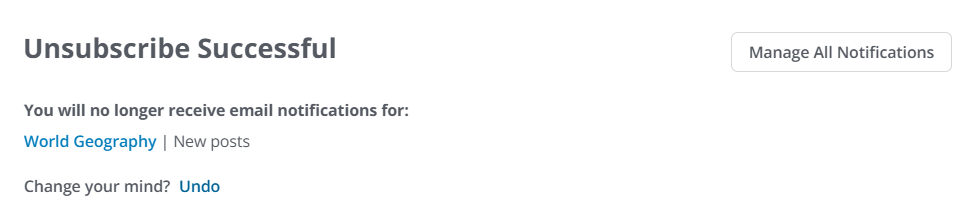
From this page, you can:
- Undo the unsubscribe if you clicked the link by mistake.
- Adjust other related notification “reasons” at the same time (where available).
NOTE: Unsubscribing applies only to that specific followed user and notification type. It does not affect other notification types for that user or your Category and Tag follows.
Additional resources
To learn more about related features and how User Following fits into the broader notification system, see:
- Category Following & Notifications: How to follow Categories, manage Category‑level notifications, and configure default followed Categories. See Category Following & Notifications to learn more.
- Tag Following: How to follow Tags, manage Tag‑level notifications, and more. See Tag Following to learn more.
- Manage Your Notification Preferences: How to configure notification defaults. See Manage your Notification Preferences to learn more.
- Mute Posts: How to mute individual posts that generate too many notifications, regardless of whether they come from Categories or Tags. See Mute Posts to learn more.