NOTE: It is assumed you know how to create custom Dashboards and Charts, and have an understanding of chart Types, Presets, and Metrics. If not, read this article before proceeding.
When building your own Dashboard Charts, you can pull data from various data sources to view different types of analytics events.
In this article, we're going to focus on the Sessions data source, which tracks signed-in user sessions in your Higher Logic Vanilla (Vanilla) community. In Vanilla Analytics, the session ID is a randomly generated ID used to track signed-in-user activity, and it resets between visits to your community.
Use this data source when you want to answer questions like:
- How many sessions are happening in my community over time?
- Which users, roles, or segments are generating the most sessions?
- Which countries, sites, devices, browsers, and operating systems are most common among sessions?
- Which URLs or areas of the site are associated with the most session activity?

Overview
A session represents a member visit to your community. Vanilla Analytics uses a session ID to track signed-in-user activity, and that value resets between visits to your community.
The Sessions data source lets you analyze session activity using dimensions tied to:
- Session context: Such as type, site, URL, and geography.
- User context: Such as user name, IDs, role details, rank, and session ID.
- Device context: Such as user agent, browser family, device type, and operating system family.
We'll explore these Group By / Filter options in more detail below.
Filter Chart data
Controlling what data is shown in a Chart is accomplished via the Group By and Filter options.
- The Group By options (available for pie graphs, line graphs, bar graphs, and tables) enable you to define the "broad strokes" of what data to view,
- while Filters let you drill into or exclude specific types of data to fine-tune it.
TIP: You can add one or multiple Group By and Filter options to dissect the data how you see fit. Generally speaking, you'll select Group By options to view a specific slice of data, and, if needed, use Filters to dig deeper.
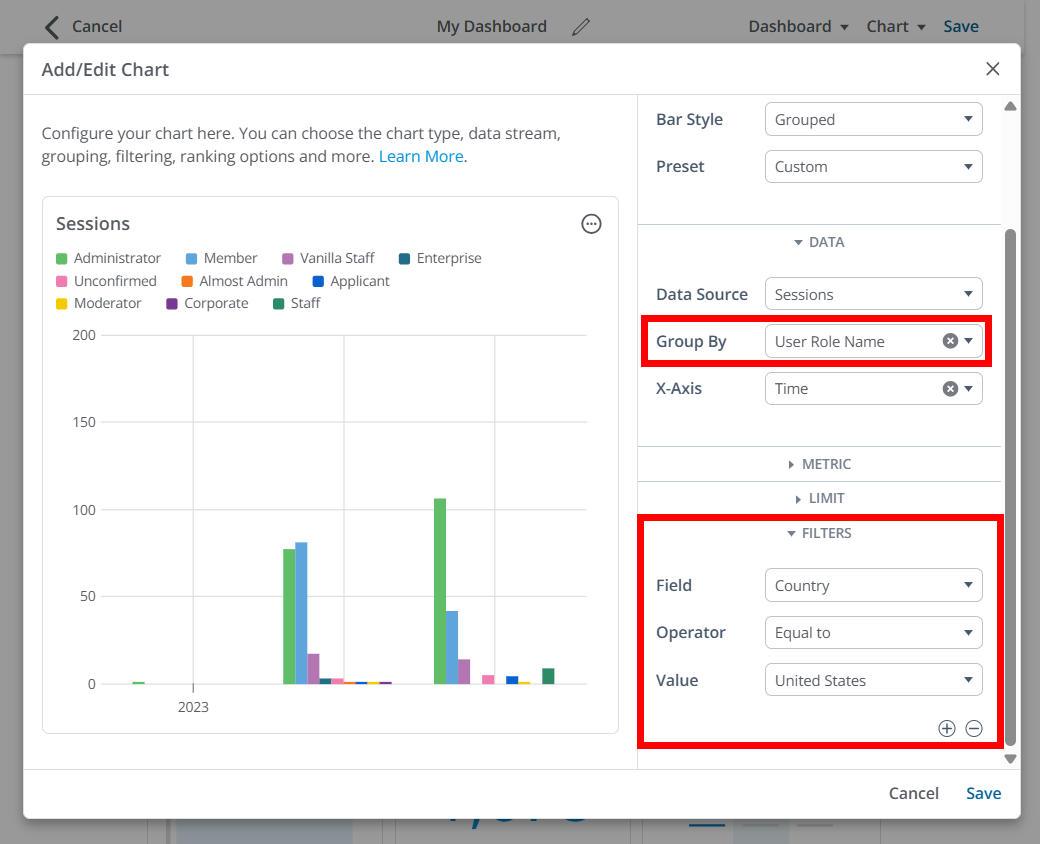
Let's learn about each of the available Group By and Filter options.
NOTE: These options can be used both to group and filter data.
Session & site data
You can group and/or filter Sessions data based on the session record itself and where it occurred.
- Type: Shows whether the session event is a Session Start or a Session End. Use this when you want to compare how many sessions began versus ended during a given time period.
- Country: The country associated with the session. Use this to compare session activity by geography.
- Country Code: The abbreviated country code associated with the session. This is useful when you want a compact geographic grouping in tables or charts.
- Site Name: The name of the site where the session occurred. This is especially useful in multi-site environments.
- Site ID: The internal ID of the site where the session occurred. Use this when you need a stable site identifier for reporting or cross-referencing.
- URL: The full URL associated with the session record. Use this to identify the exact page or location tied to session activity.
- URL Path: The path portion of the URL, without the full domain. Use this to compare activity across areas of the site without splitting results by domain.
These options are useful when you want to:
- Compare session activity across communities
- See which countries generate the most sessions
- Identify which pages or areas of the community are most associated with session activity
User data
You can group and/or filter Sessions data based on the user tied to the session.
- User Name: The display name of the user associated with the session. Group by this field to see which users are generating the most sessions.
- Rank ID: The internal ID of the user's Rank. Use this when you want to analyze sessions by Rank using a stable identifier.
- User Role Type: The high-level Role type assigned to the user. Use this to compare session activity across broad Role categories.
- User Role Name: The name of the Role assigned to the user. Use this to compare session activity across specific Roles.
- User Role ID: The internal ID of the Role assigned to the user. This is useful when you need a stable Role identifier for reporting or joins with other data.
- User Session ID: The unique ID for the user's session. In Vanilla Analytics, the session ID is a randomly generated ID used to track signed-in-user activity, and it resets between visits.
- User ID: The internal numeric ID of the user. This is useful when you need a stable user identifier that does not change if the user's display name changes.
- User UUID: The UUID of the user. Use this when you need a globally unique identifier for the user record.
These options are useful when you want to:
- Identify which users are creating the most sessions
- Compare session activity by Role or Rank
- Audit session behavior for a specific user or segment
Device data
You can also group and/or filter Sessions data based on the technical environment used during the session.
- User Agent: The raw user agent string captured for the session. Use this when you need the most detailed browser/device identifier available.
- User Browser Family: The browser family associated with the session, such as Chrome, Safari, or Firefox. Use this to compare session activity by browser.
- User Device Type: The type of device associated with the session, such as desktop, tablet, or mobile. Use this to compare session activity by device category.
- User OS Family: The operating system family associated with the session, such as Windows, macOS, iOS, or Android. Use this to compare session activity by operating system.
These options are useful when you want to:
- Compare usage across browsers and devices
- Understand how members access your community
- Spot technical trends that may influence support or design decisions